Master Data Matching#
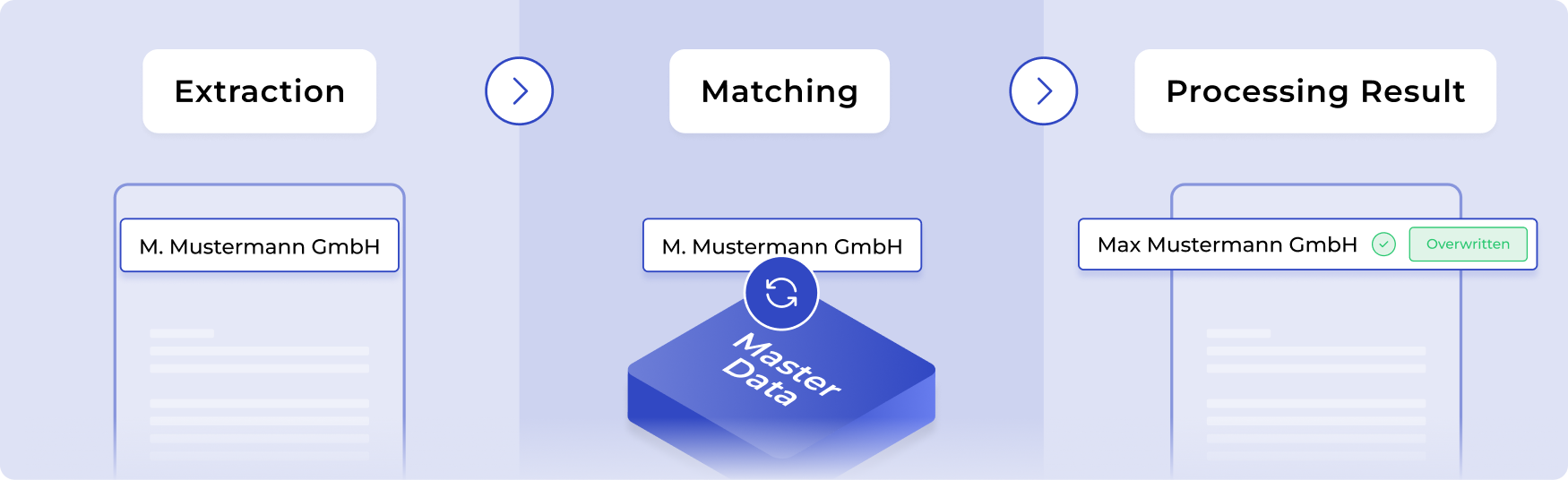
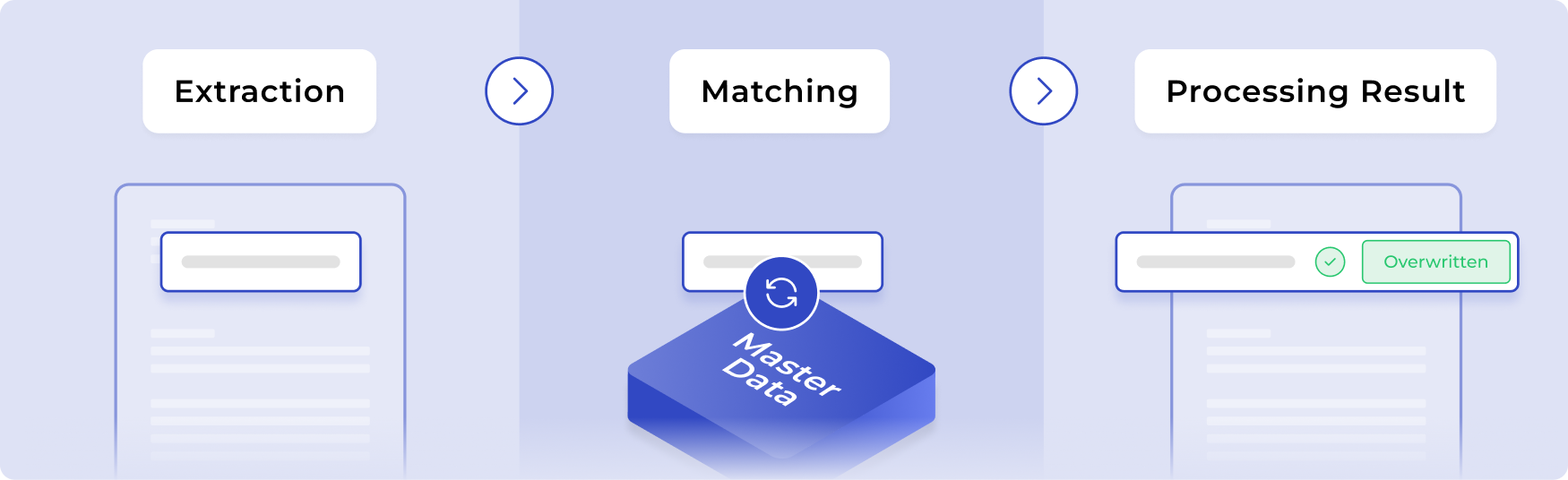
Master Data Matching is a core part of the extraction workflow in DocuWare IDP. It helps you connect and validate extracted document data with your trusted master data, so workflows can identify the right entity and trigger the right actions automatically.
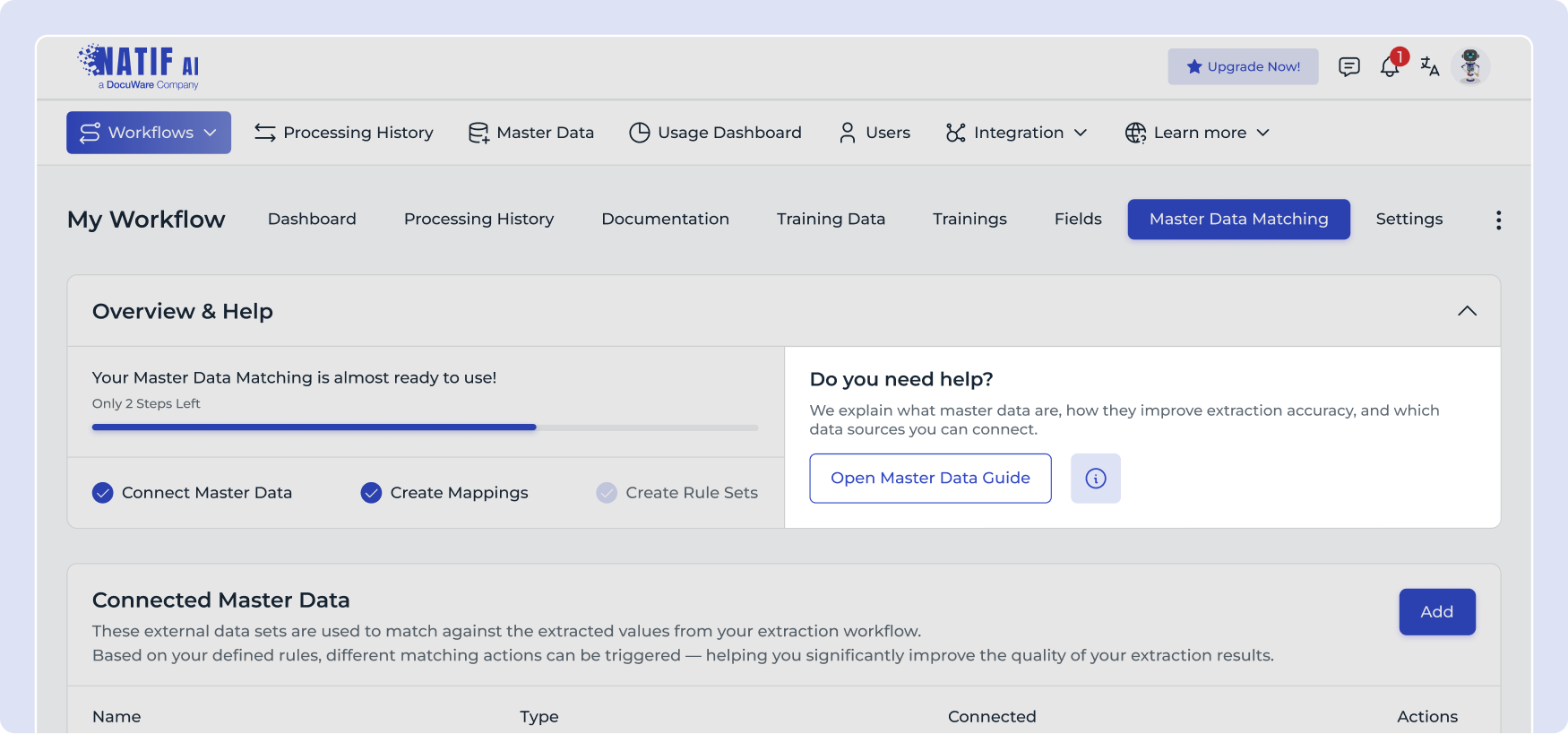
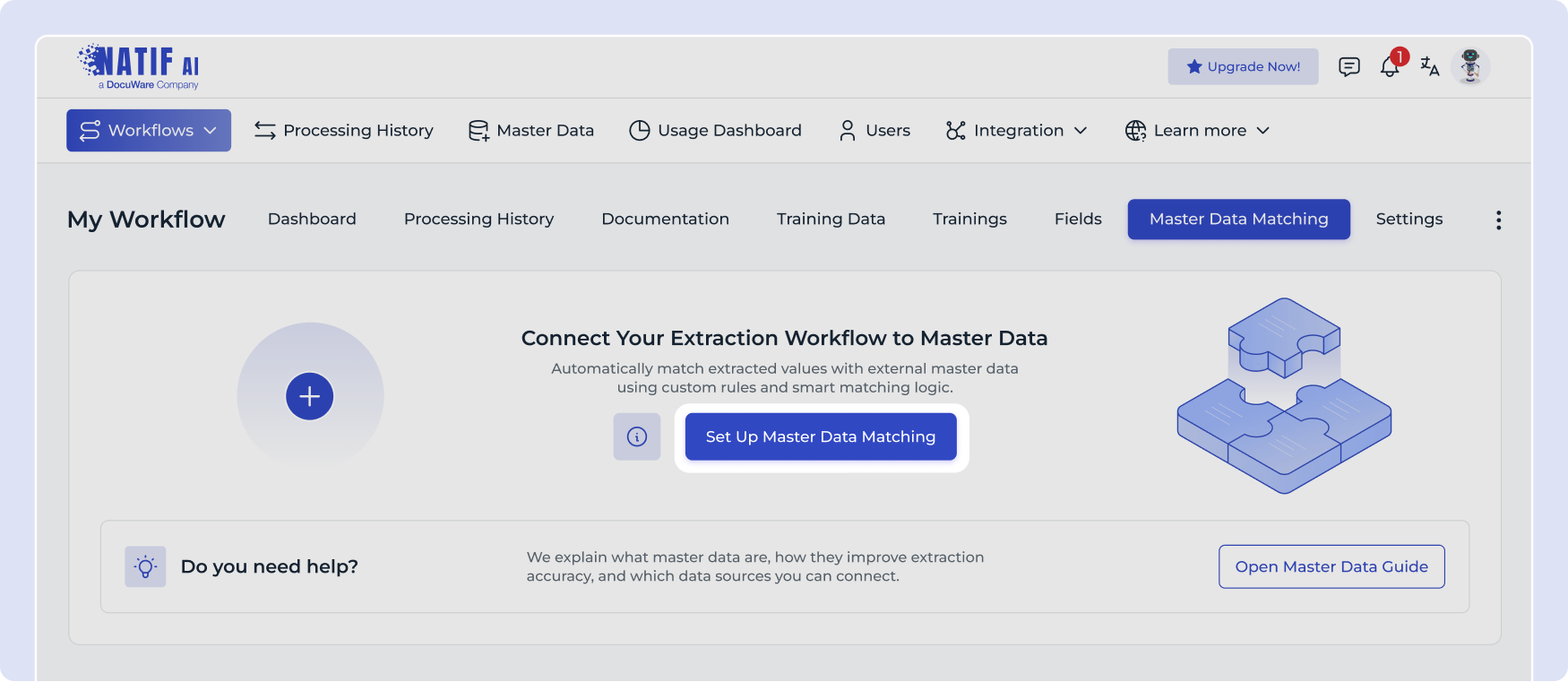
 For dedicated onboarding also use the Tour on the Master Data Matching page and the guide linked there. That is the recommended starting point for setup and guided onboarding.
What Master Data Matching does#
Master data is the trusted ground-truth data from your internal systems.
When extracted values are compared with master data, the system can detect matches or differences. Based on the result, matching actions can be applied, for example:
- replacing an extracted value with master data
- adding a note to a field
- clearing a field
- flagging a field
- marking a document as verified
Master Data Matching is part of the extraction process. The matching results are included in the extraction results and matching actions (notes and replacements) are documented in the field notes.
How it works#
- Connect a master data source
 2. Map extracted fields to the matching master data fields
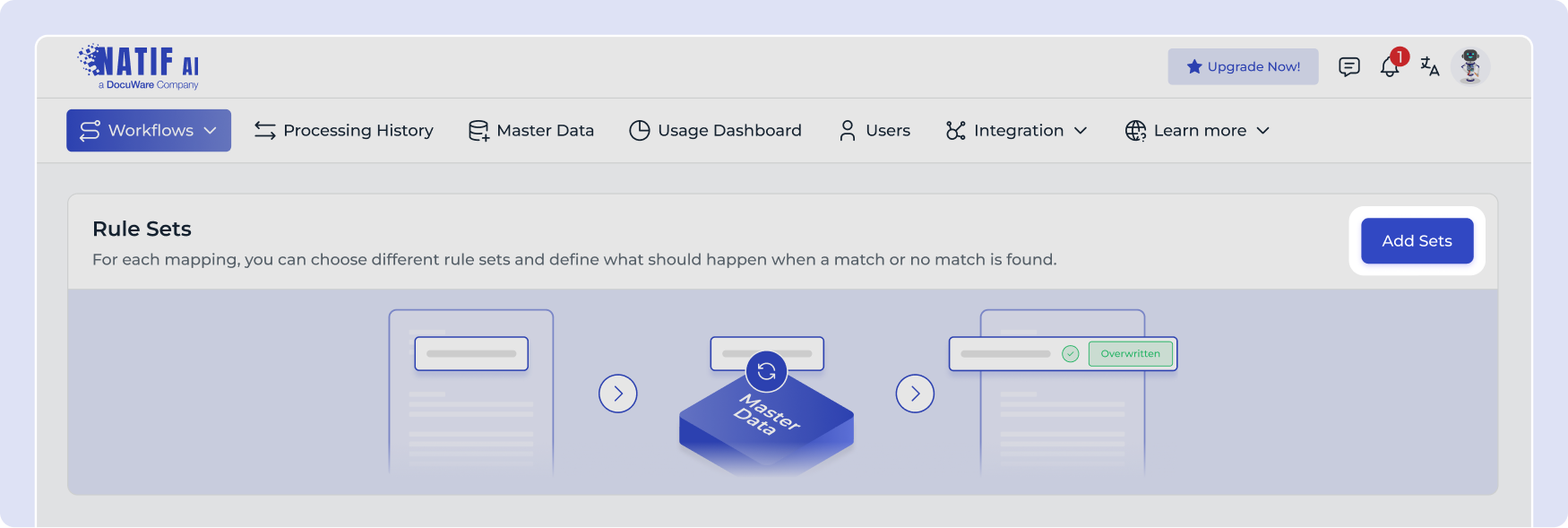
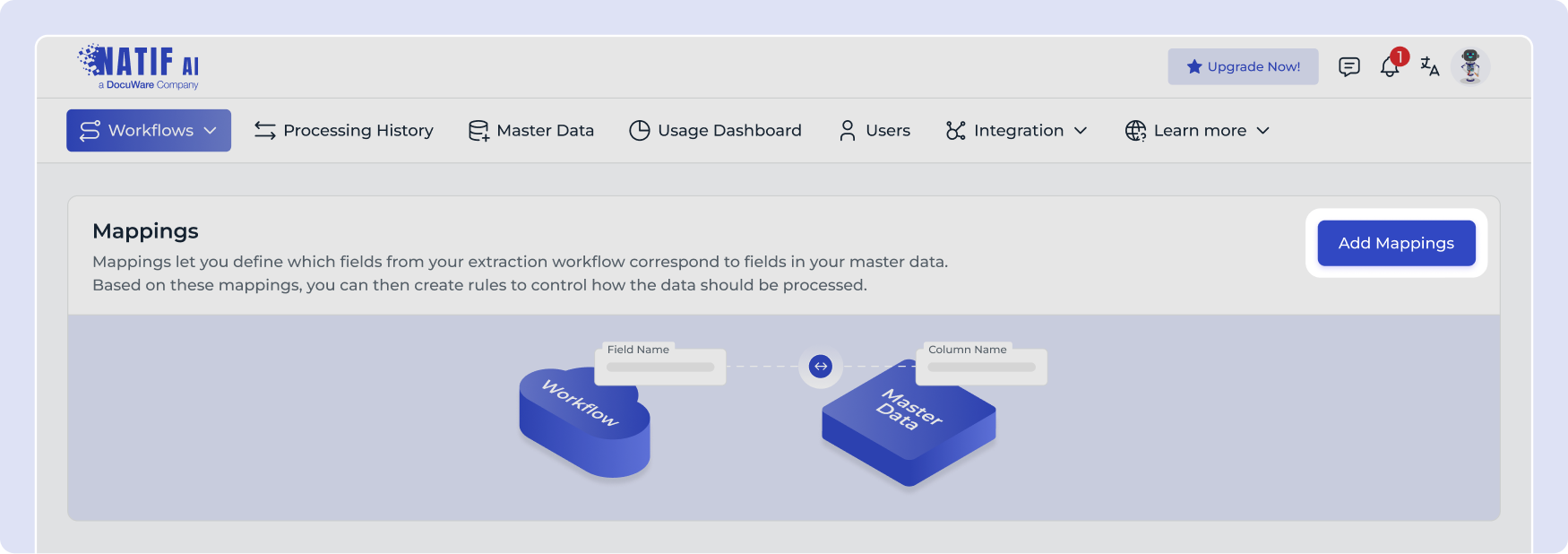 3. Create rulesets to define when a match is fulfilled
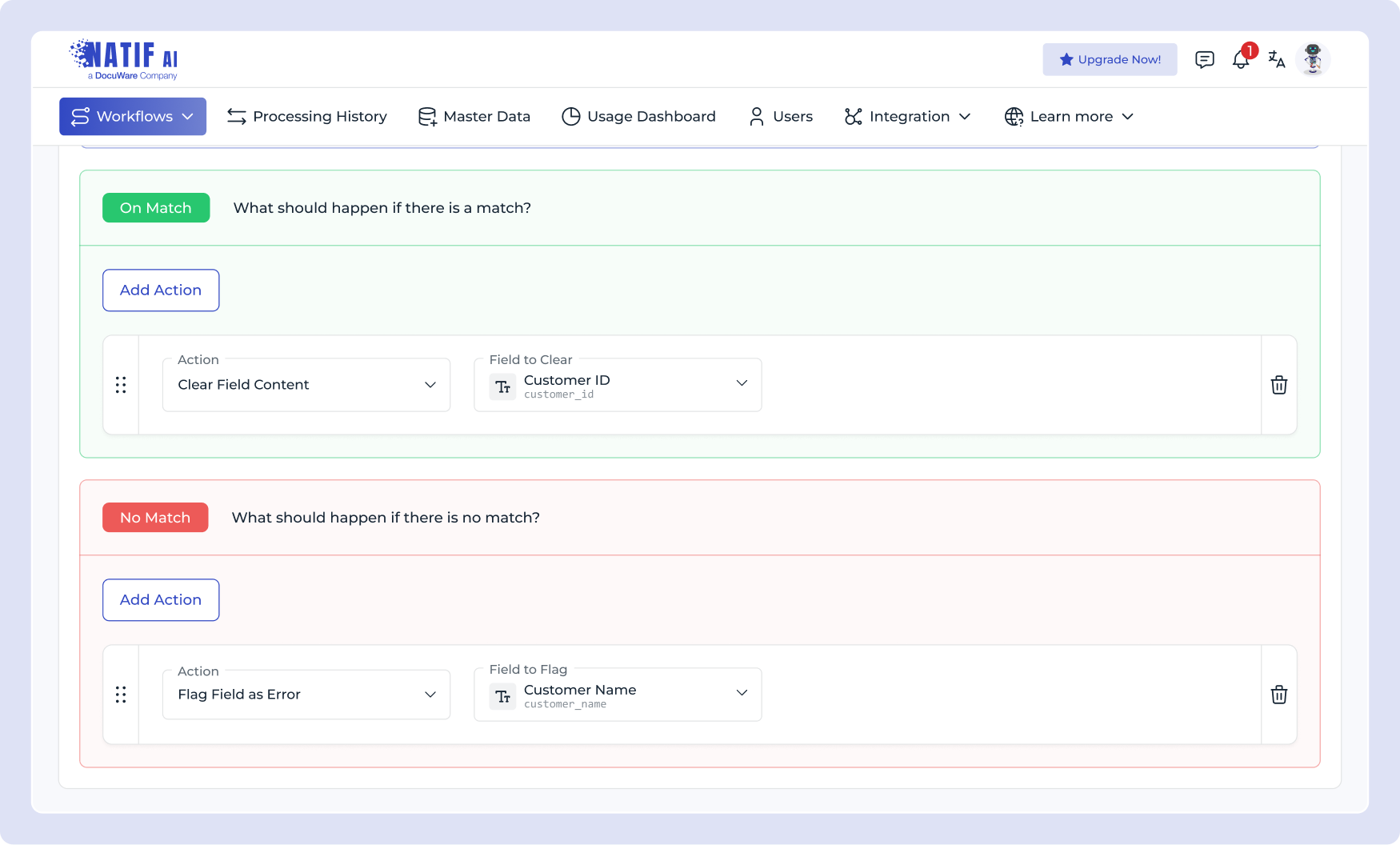
 4. Define actions for match and no-match cases
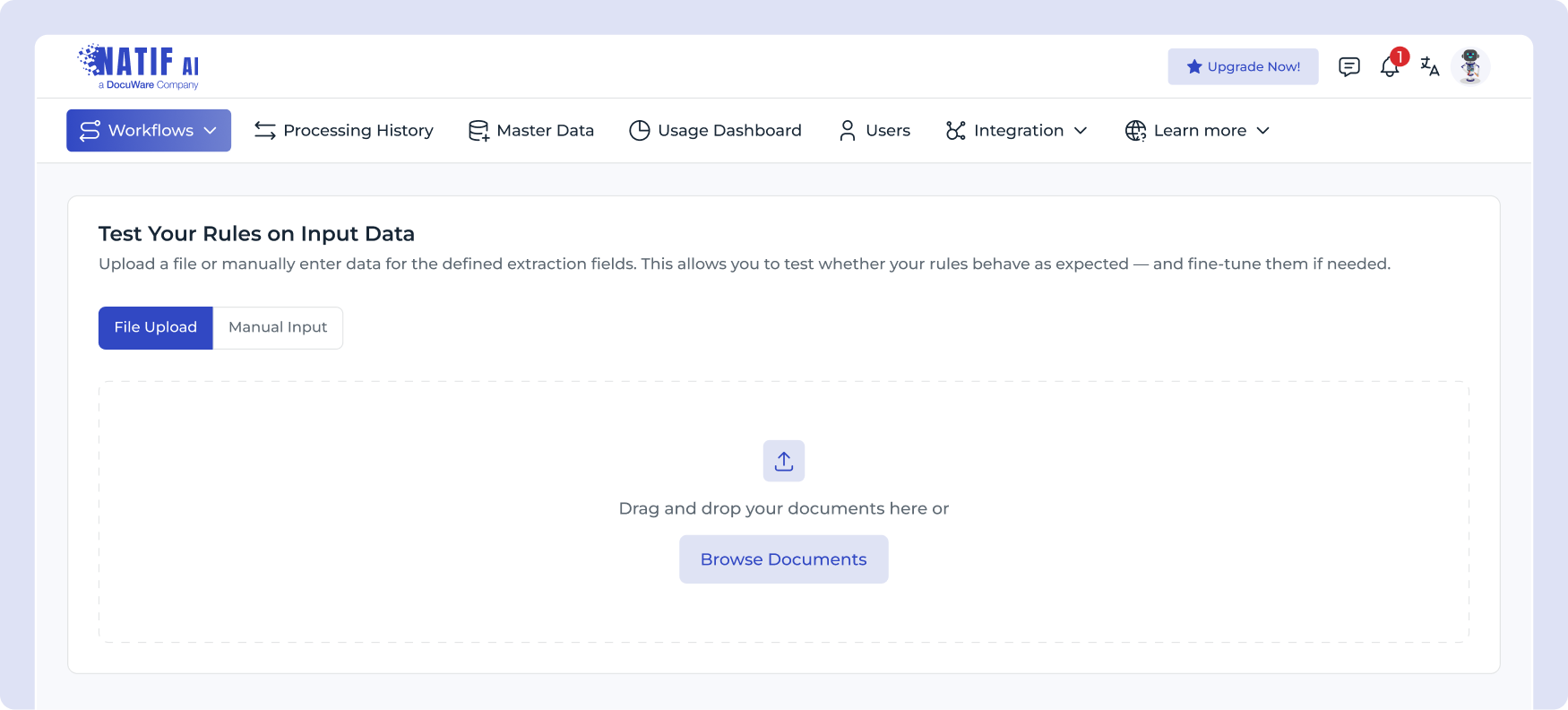
 5. Test the workflow and adjust the rules if needed
Master Data Source Connection#
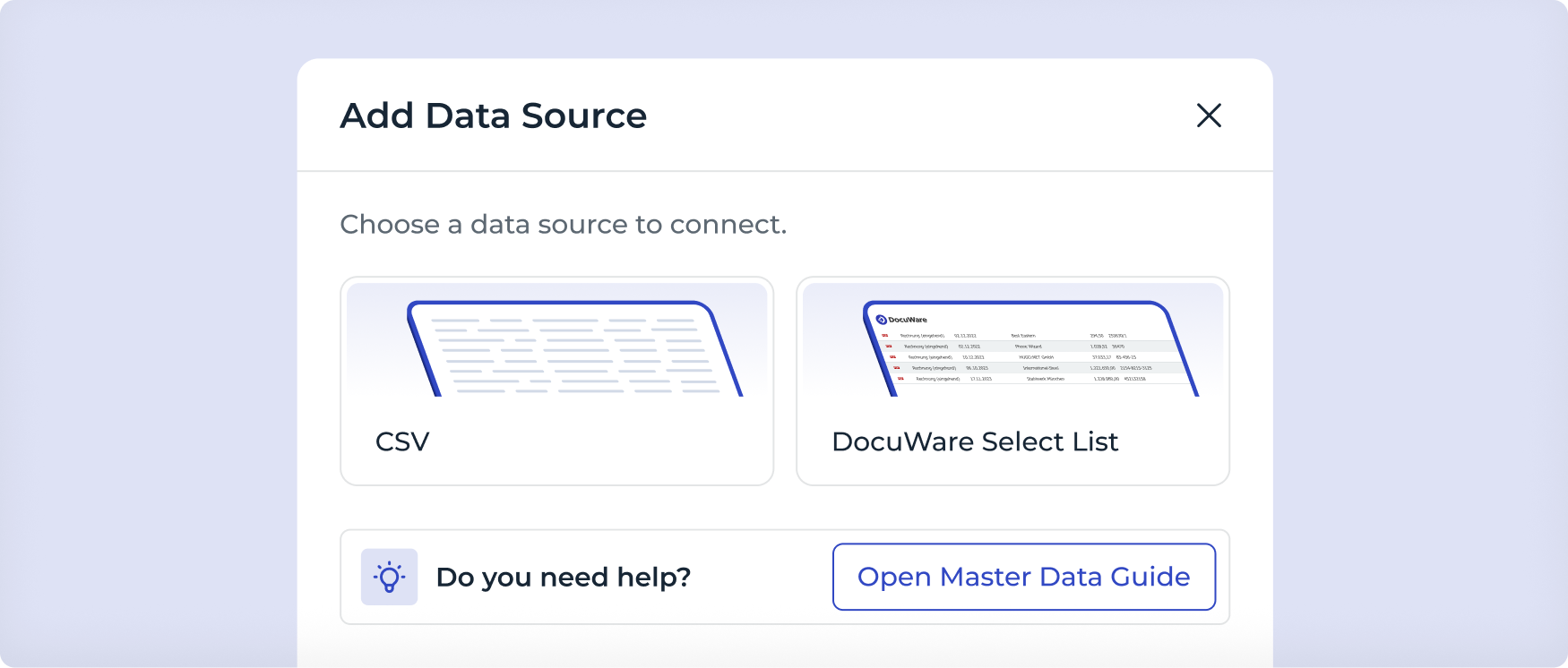
You can upload and maintain your master data via the Master Data page. We support CSV files in all common separators and encodings.
In addition, starting with DocuWare version 7.14, it is also possible to import Select Lists as a master data source. To do this, the DocuWare user must have the “Manage IDP” right.
During the setup, you need to enter your DocuWare Cloud URL. You will then be prompted with a pop-up window to authenticate. Once the authentication is completed, you will see an overview of the available Select Lists in the platform.
Imported Select Lists for Master Data Matching are updated automatically every 24 hours by syncing from those Select Lists: DocuWare IDP reads the Select List again about once a day, so any changes on the DocuWare side are synced to your master data source without any further action.
We have implemented an endpoint for data syncing for Master Data Matching: it allows you to replace an existing CSV source by uploading a new CSV file for the same source, see Updating master data via API.
Warning
Keep the columns of an imported Select List stable. Because the list is read again automatically, a column that you rename or remove in DocuWare is gone from your master data source with the next refresh. Column names are compared exactly, so even changing their capitalization counts as removing one column and adding another.
Field mappings and rules that point to a column which is no longer there can not match anything any more. Matching still runs, but those rules never evaluate to a match, so their No Match actions apply to every document — the rulesets built on them silently stop doing what you set them up for.
Adding columns is unproblematic: your existing mappings and rules keep working, and the new columns become available for mappings after the next refresh.
We are currently working on additional data source connectors.
Rulesets and logic#
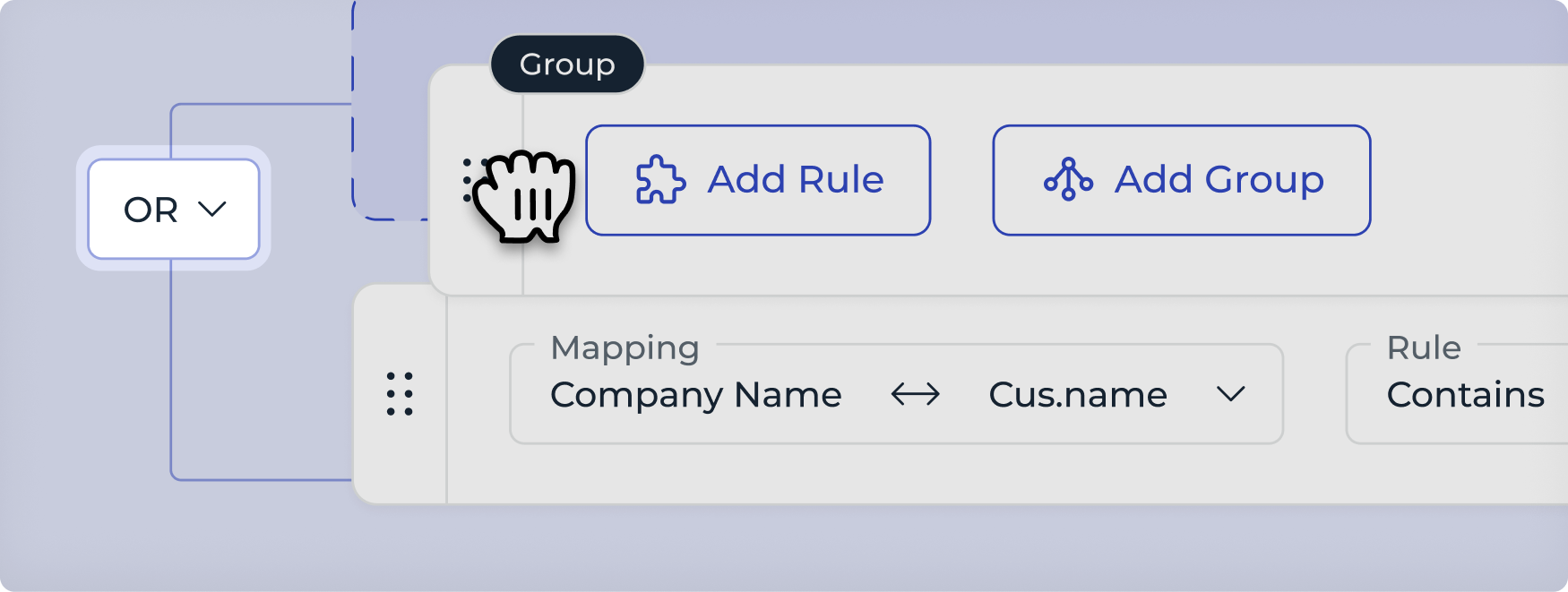
Once your master data source and mappings are in place, you can create rulesets. Rulesets define the logic that decides whether a record is considered a match.
You can create individual rules or rule groups, and combine them with:
- AND: all rules must be fulfilled
- OR: only one rule or group must be fulfilled
Each ruleset can trigger actions in two cases:
- On Match: what happens when the rule is fulfilled
- No Match: what happens when the rule is not fulfilled
Common actions include replacing extracted values with master data or verifying the document.
Enrichment with custom fields#
Master Data Matching can also be used to enrich data that is not present on the document itself. This is useful for downstream processes, for example when you need internal IDs for issuers, creditors or business transactions.
You can also use enriched fields across multiple rulesets. For example, one ruleset can identify a vendor and write the vendor ID into a custom field and a later ruleset can use that field in its logic.
A common setup is to create a calculated string field, use a constant formula and leave the value empty. This keeps the field empty during extraction so it can be populated by Master Data Matching.

Technical Limits#
Please keep the following limits in mind:
- Master Data upload limit per tenant: 100 MB
- Matching performance limits: up to 200,000 records per table and 15,000 rows per table
- Ruleset nesting: limited to a normal use-case level and does not affect correct usage of rulesets
Updating master data via API#
Imports from files are one-time imports, such master data sources are not synchronized continuously. To keep those master data sources up to date, you do not have to delete them and import a new table: you can replace the data of an existing source in-place with a newly exported file via our API, for example from a nightly export job in your source system.
Both endpoints are authenticated like any other API request, either with an API key or with an access token of a user that has the Manager role.
Looking up your master data sources#
Your master data sources can be listed with the GET /matching/datasources endpoint. Use it to look up the datasource_id of the source you want to update.
See also the auto-generated API documentation.
Parameters#
| Field | Type | Description |
|---|---|---|
limit (optional) |
integer | Maximum number of master data sources to return, between 1 and 1000. Defaults to 100. |
Response#
On success, returns an application/json response body containing a list of master data source objects in the following form:
Master data source object
The available_fields are the columns derived from the data that was loaded last, last_data_sync is the point in time of that update — the last file upload, or for Select List sources the last automatic refresh.
Replacing the data of a master data source#
The data of a master data source can be replaced with the PUT /matching/datasources/{datasource_id} endpoint.
See also the auto-generated API documentation.
The source keeps its identifier and its name, so your field mappings, rulesets and the extraction workflows built on them remain in place. The new data is used by the next document that is processed with a workflow matching against this source.
Parameters#
| Field | Type | Description |
|---|---|---|
{datasource_id} |
UUID | The identifier of the master data source whose data is to be replaced. |
file |
binary multipart/form-data |
The new master data file, with the same limits that apply to an upload via the Master Data page: CSV or JSONL, up to 10,000 rows with up to 50 columns, at a maximum size of 4 MB per file. |
Implementation examples#
Responses#
This endpoint may respond with one of the following HTTP-status-codes:
| HTTP-Status-Code | Description |
|---|---|
| 200 | The data was replaced. The response body contains the unchanged datasource_id. |
| 401 | Credentials could not be validated. |
| 403 | Credentials could not be authorized for managing master data. |
| 404 | No such master data source. |
| 409 | The master data source was imported from a Select List and can not be replaced. |
| 413 | The file exceeds the file size, row or column limits. |
| 415 | The file is neither a CSV nor a JSONL file. |
Caution
The columns of the new file are not validated against the previous ones, the available fields are simply re-derived from the upload. Keep your column names stable, including their capitalization: as described above, a renamed or removed column leaves the field mappings and rules that reference it without a counterpart, and those rules never match again. Adding columns is unproblematic. If the structure of your export changes, review your mappings and rulesets on the Master Data Matching page afterwards.
Note
Master data sources that were imported from a DocuWare Select List can not be replaced by a file upload. Such sources are refreshed from their Select List automatically about once a day.
Use Case Example#
If an invoice contains a vendor name like M. Mustermann GmbH, Master Data Matching can compare it with your master data and identify the correct vendor entry, such as Max Mustermann GmbH. If other fields like address or VAT number also match, the workflow can automatically replace or verify the extracted values.